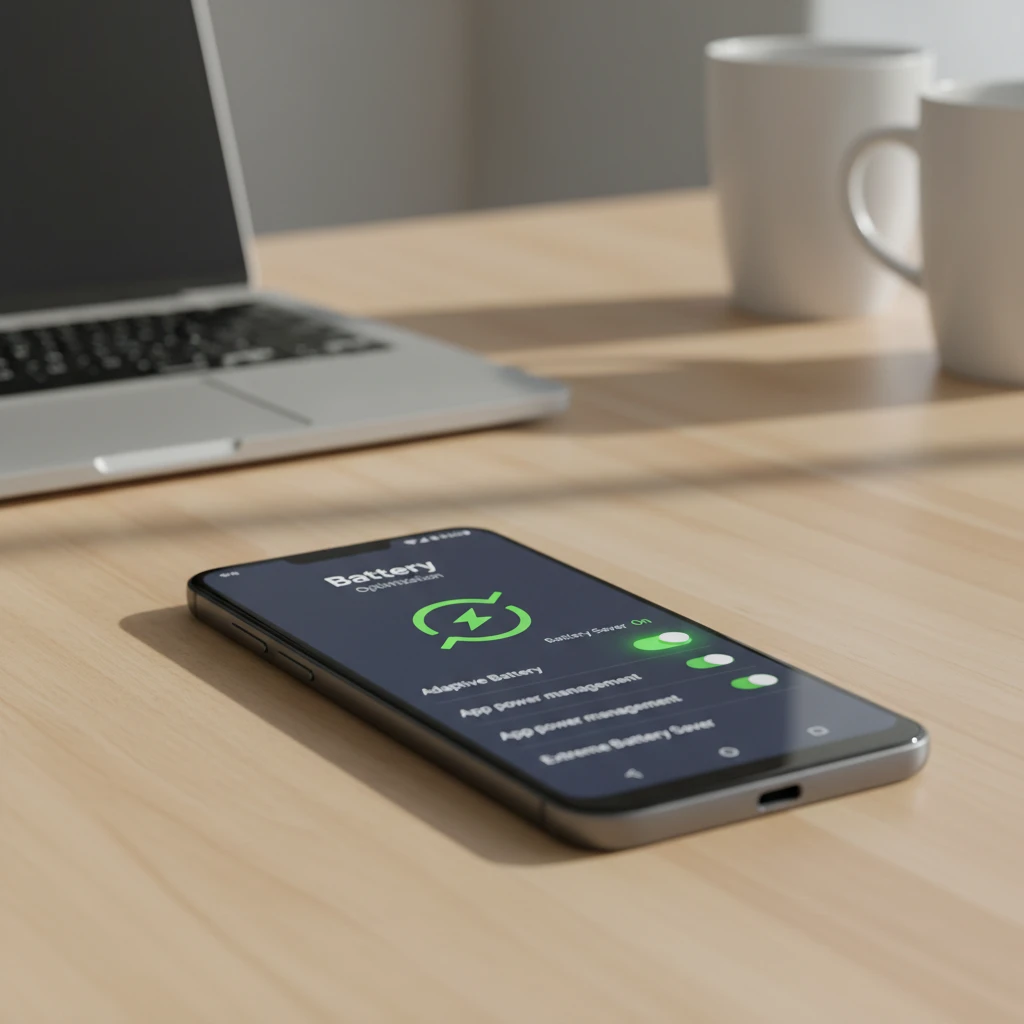
Few things are more frustrating than an Android phone that dies before the day is over. The good news is that most battery drain comes from settings and habits you can change in minutes. This guide covers practical Android battery optimization tips that work on Samsung, Google Pixel, Xiaomi, OnePlus, Motorola and most other devices running a recent version of Android.
Start by Finding What Actually Drains Your Battery
Before changing anything, check where the power is going. Open Settings > Battery > Battery usage (the exact path varies by manufacturer). You will see a list of apps and system services ranked by consumption since the last full charge.
- Screen: Usually the biggest consumer on any phone.
- Social and streaming apps: Facebook, Instagram, TikTok and YouTube are common culprits.
- Background activity: An app that uses a lot of power while you never open it is a red flag.
- Cell standby: High usage here often points to weak signal.
Use this list as your roadmap. Fix the biggest offenders first for the most noticeable gains.
Display Settings That Save the Most Power
1. Lower Screen Brightness or Use Adaptive Brightness
A bright screen consumes far more energy than most people realize. Turn on Adaptive Brightness so the phone adjusts to ambient light, and manually lower the slider when you are indoors.
2. Shorten the Screen Timeout
Set the screen to turn off after 15 or 30 seconds of inactivity. Leaving it at two or five minutes wastes power every time you set the phone down.
3. Enable Dark Mode
If your phone has an OLED or AMOLED display, which most mid-range and flagship models do, dark mode turns off pixels that display black. This can noticeably reduce consumption, particularly at high brightness.
4. Reduce the Refresh Rate
Phones with 90 Hz or 120 Hz displays look smoother but use more power. Switch to Standard (60 Hz) in Display settings when you want to stretch the battery. Many phones also offer an adaptive mode that lowers the rate automatically for static content.
Manage Apps and Background Activity
5. Restrict Background Usage for Heavy Apps
Go to Settings > Apps, choose an app, tap Battery, and select Restricted or Optimized. This stops apps you rarely use from waking up your phone constantly. Do not restrict messaging apps if you need instant notifications.
6. Uninstall or Disable Apps You Do Not Use
Unused apps often run services, sync data and send notifications in the background. Remove what you do not need. For pre-installed apps that cannot be uninstalled, use Disable.
7. Use Lite Versions or Web Apps
Facebook Lite, Messenger Lite and similar versions use fewer resources. Accessing a service in your browser instead of installing a full app can also reduce background drain.
8. Turn Off Unnecessary Notifications
Every notification lights up the screen and wakes the processor. Disable alerts for apps that are not important to you under Settings > Notifications.
9. Limit Auto-Sync
Constant syncing of email, calendars, cloud photos and contacts adds up. Adjust sync frequency or disable auto-sync for accounts you do not need updated in real time.
Connectivity and Sensors
10. Turn Off Features You Are Not Using
Wi-Fi, Bluetooth, NFC and location services all consume power when they are active and searching. Disable them when you do not need them, or turn off Wi-Fi scanning and Bluetooth scanning in your location settings.
11. Be Smart About Location Access
Set location permission for most apps to While using the app or Ask every time. Navigation and ride-hailing apps are the only ones that really need continuous access.
12. Use Wi-Fi Instead of Mobile Data When Possible
Phones use more power to maintain a cellular connection, especially in areas with weak coverage. In poor-signal areas, enabling Airplane mode for a while or using Wi-Fi calling can help. If your phone supports 5G, switch to LTE when you do not need the extra speed, because 5G can drain the battery faster.
Use Built-In Battery Features
13. Battery Saver and Power Saving Modes
Battery Saver limits background activity, reduces visual effects and can lower performance. Set it to turn on automatically at 20 or 30 percent. Many manufacturers also provide an Extreme or Ultra power saving mode for emergencies, which restricts the phone to essential functions.
14. Adaptive Battery
On Pixel and many other Android phones, Adaptive Battery learns which apps you use most and limits power for the rest. Make sure it is enabled in the Battery settings.
15. Optimized or Limited Charging
Features such as Adaptive Charging on Pixel or Protect Battery on Samsung slow down charging near full capacity to reduce wear. This will not extend a single day of use, but it helps preserve long-term battery health.
Habits That Protect Battery Health
- Avoid extreme heat: Do not leave your phone in a hot car or under direct sun. Heat degrades lithium-ion batteries faster than anything else.
- Keep charge between 20 and 80 percent: Constantly draining to zero or sitting at 100 percent for long periods increases wear.
- Use quality chargers and cables: Cheap accessories can charge inefficiently and harm the battery.
- Remove heavy cases while charging: This helps heat escape if your phone gets warm.
- Restart occasionally: A weekly restart clears stuck processes that may be draining power.
Keep Your Software Updated
System and app updates often include battery and performance improvements. Check Settings > System > Software update and update apps through Google Play. If a recently updated app suddenly drains power, check for a newer patch or roll back to an alternative.
When the Battery Itself Is the Problem
If your phone is two or three years old and still drains quickly after you have applied these tips, the battery may be worn out. Signs include sudden shutdowns at 20 to 30 percent, swelling, excessive heat and a dramatic drop in screen-on time. Many phones include a battery health indicator in the settings or in diagnostics apps. A battery replacement from the manufacturer or a reputable repair shop is often cheaper than buying a new phone.
Quick Checklist
- Check battery usage to identify heavy apps.
- Lower brightness, shorten screen timeout and use dark mode.
- Restrict background activity for apps you rarely use.
- Disable unused connectivity features and limit location access.
- Turn on Battery Saver and Adaptive Battery.
- Keep software updated and avoid heat.
Final Thoughts
Android battery optimization does not require rooting your phone or installing questionable "battery booster" apps, which often drain more power than they save. By adjusting display settings, controlling background activity, using built-in power features and charging wisely, you can add hours to your daily battery life and keep the battery healthy for years. Start with two or three changes today, monitor the results in your battery usage screen, and fine-tune from there.
Deixe um comentário