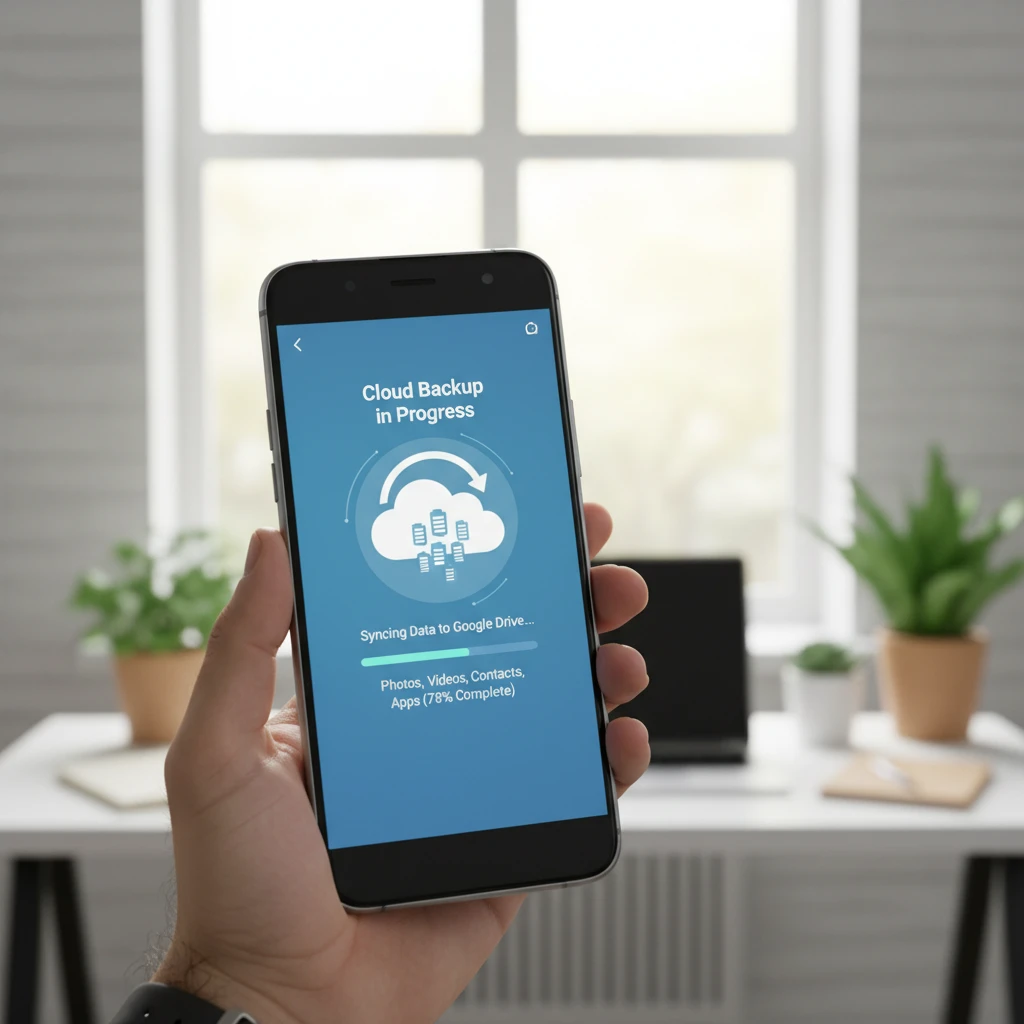
Losing a phone is stressful. Losing the photos, messages, and app data on it is worse. The good news is that backing up an Android phone to the cloud takes only a few minutes to set up, and after that it mostly runs on its own. This guide covers the built-in tools, the best alternatives, and the mistakes that leave people with incomplete backups.
Why Back Up Your Android Phone to the Cloud?
Local backups to a computer or SD card are useful, but they depend on you remembering to make them. Cloud backups have clear advantages:
- Automatic: they run in the background, usually when you are on Wi-Fi and charging.
- Protection against loss and theft: your data survives even if the phone is gone.
- Easy migration: a new phone can pull your settings, apps, and data during setup.
- Accessible anywhere: photos and files can be viewed from any browser or device.
What Does Android Back Up Automatically?
Google’s built-in backup covers several categories, though exact coverage varies by phone model and Android version:
- App data (for apps that support backup)
- Call history
- Contacts
- Device settings such as Wi-Fi networks, wallpaper, and display options
- SMS and MMS messages
- Photos and videos (when Google Photos backup is enabled)
Things that often are not included: files in some app-specific folders, certain game progress, downloaded media, and data from apps that opt out of backups. That is why a layered approach works best.
Method 1: Back Up with Google One (Built-In Android Backup)
This is the default option and works on nearly every Android phone.
Step-by-step setup
- Open Settings on your phone.
- Tap Google, then Backup (on some phones: Settings, System, Backup).
- Turn on Backup by Google One.
- Tap Back up now to start the first backup immediately.
Google gives every account 15 GB of free storage shared across Gmail, Drive, and Photos. Device backups count toward that total, although some data types are handled generously. If you run out of room, Google One plans start with 100 GB at a low monthly price.
Check your backup status
On the same Backup screen, you can see the time of your last backup and the data types included. If the last backup is more than a few days old, something is blocking it, often a weak connection, low battery, or full storage.
Method 2: Back Up Photos and Videos with Google Photos
Photos are usually the most precious thing on a phone, and they deserve their own backup.
- Open the Google Photos app and sign in.
- Tap your profile picture, then Photos settings, then Backup.
- Switch on Backup.
- Choose the upload quality: Original quality keeps full resolution, while Storage saver compresses files to save space.
- Under Back up device folders, select folders such as WhatsApp Images or Screenshots.
Once photos are safely uploaded, you can use the Free up space option to remove local copies. Only do this after confirming the backup is complete.
Method 3: Samsung Cloud for Galaxy Phones
If you own a Samsung phone, you have a second built-in option that captures things Google may miss, including home screen layouts, Samsung apps, and some system settings.
- Go to Settings, then Accounts and backup.
- Tap Back up data under Samsung Cloud.
- Select the items you want to save and tap Back up.
Running both Samsung Cloud and Google backup is perfectly fine and gives you redundancy.
Method 4: Third-Party Cloud Storage Apps
For documents, downloads, and other files that the system backup skips, a cloud storage app fills the gap.
- Google Drive: upload files manually or use the scan and backup features.
- Microsoft OneDrive: includes camera upload and works well if you use Microsoft 365.
- Dropbox: good for cross-platform sync and automatic camera uploads.
- Mega or pCloud: popular for larger free allowances or privacy-focused features.
Pick one service that fits your ecosystem rather than scattering files across five of them.
Don’t Forget Messaging Apps
Chat history is often stored separately from the main Android backup.
- WhatsApp: open Settings, then Chats, then Chat backup, and link it to your Google account. Choose daily or weekly frequency.
- Telegram: messages live in Telegram’s own cloud, so they are restored automatically when you sign in.
- Signal: uses a local encrypted backup file that you must store yourself.
How to Restore Your Backup on a New Phone
During the initial setup of a new Android device, choose the option to copy apps and data and sign in with the same Google account. Select the most recent backup and pick what to restore. Apps will reinstall from Google Play, and settings, contacts, and messages will return. Photos reappear once you open Google Photos.
Note that you generally cannot restore a backup from a newer Android version onto a phone running an older one.
Best Practices for a Reliable Cloud Backup
- Use Wi-Fi: the first backup can be several gigabytes.
- Keep the phone charging: automatic backups often run only when plugged in and idle.
- Secure your Google account: enable two-step verification, since this account holds your backup.
- Check storage regularly: a full account silently stops backups.
- Test your backup: confirm that recent photos appear in Google Photos on a computer.
- Follow the 3-2-1 idea: keep multiple copies, ideally with one outside your phone’s ecosystem.
Troubleshooting Common Backup Problems
Backup keeps failing
Check your internet connection, free up Google account storage, and restart the phone. Make sure you are signed in to the correct account under Settings, Google.
Backup is stuck or very slow
Turn off battery saver, leave the phone on Wi-Fi, and keep the screen off while charging. Large video libraries can take hours the first time.
Some apps did not restore data
Developers decide whether their apps allow backup. Look for an in-app cloud sync or sign-in feature to recover data.
Frequently Asked Questions
Is backing up Android to the cloud free?
Yes, up to the 15 GB included with a Google account. Beyond that, you will need a paid plan or additional services.
Are cloud backups safe?
Reputable providers encrypt data in transit and at rest. For extra protection, use a strong unique password and two-step verification.
How often should I back up?
Leave automatic backup on so it runs daily. Trigger a manual backup before updating the system, repairing the phone, or switching devices.
Final Thoughts
The best way to back up an Android phone to the cloud is to combine the built-in Google backup, Google Photos for media, and a file storage app for documents. Spend ten minutes setting these up today, verify that they work, and you will be covered whenever your phone is lost, broken, or replaced.
Deixe um comentário