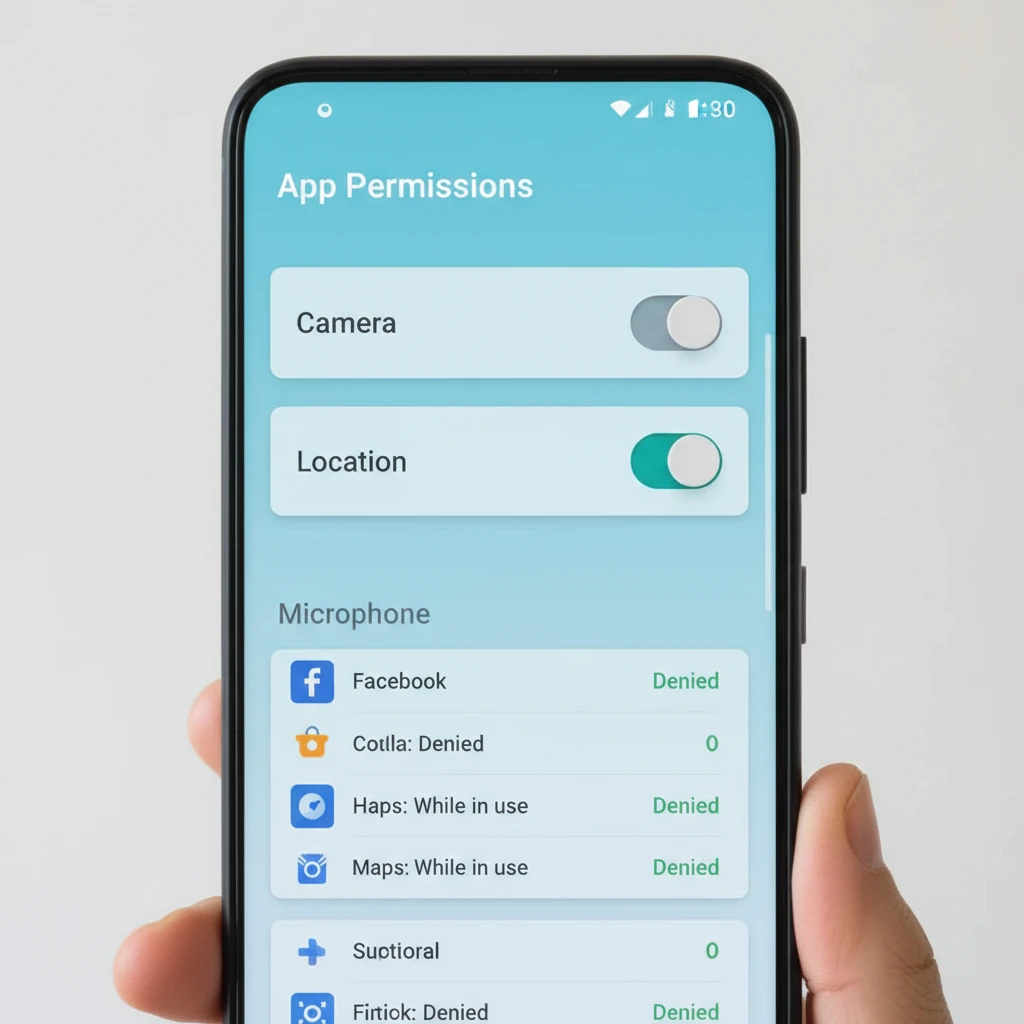
Every time you install a new app on your Android phone, it quietly asks for access to something: your camera, your contacts, your location, or your microphone. Most people tap Allow without thinking. But those small taps decide how much of your personal life an app can see. Understanding Android app permissions is one of the easiest ways to keep your data safe without giving up the apps you love.
What Are Android App Permissions?
Android app permissions are rules that control which parts of your device and which pieces of your data an app is allowed to use. Android is built on a sandbox model: each app runs in its own isolated space and cannot touch other apps or sensitive system features unless you explicitly grant access.
For example, a photo editor needs access to your photos, and a navigation app needs your location. Permissions make sure that access is intentional and, in modern versions of Android, revocable at any time.
How Android Permissions Have Evolved
Early versions of Android showed a long list of permissions at install time. You either accepted everything or did not install the app. That all-or-nothing approach changed with Android 6.0 Marshmallow, which introduced runtime permissions. Apps now ask for access at the moment they need it, and you can say no and still use the rest of the app.
Later releases added more control:
- Android 10: introduced the option to allow location access only while the app is in use, and limited background access.
- Android 11: added one-time permissions and automatically reset permissions for apps you have not used in months.
- Android 12: added a Privacy Dashboard, microphone and camera indicators, and approximate location sharing.
- Android 13 and later: introduced a notification permission and more granular media access, so apps can request only photos or only videos instead of all files.
Normal vs. Dangerous Permissions
Android groups permissions by the level of risk they carry.
Normal Permissions
These cover low-risk features, such as accessing the internet, using Bluetooth, or vibrating the phone. Android grants them automatically at install time because they pose little threat to your privacy.
Dangerous (Runtime) Permissions
These give access to private data or powerful features. You see a pop-up asking for approval. Common examples include:
- Camera: take photos and record video.
- Microphone: record audio.
- Location: precise (GPS) or approximate position.
- Contacts: read or modify your address book.
- Phone and SMS: make calls, read call logs, send or read messages.
- Storage and media: access photos, videos, music, and files.
- Calendar: read or write events.
- Body sensors and activity recognition: heart rate and step data.
- Nearby devices: scan and connect to Bluetooth or Wi-Fi devices.
Special Permissions
A few powerful permissions, such as drawing over other apps, installing unknown apps, or accessing Accessibility services, require you to enable them manually in Settings. These deserve extra caution because they can be abused by malicious software.
How to Review App Permissions on Android
The exact menu names vary slightly between manufacturers, but the steps are similar on most devices.
Check Permissions for a Single App
- Open Settings and tap Apps.
- Select the app you want to review.
- Tap Permissions to see what is allowed and denied.
- Tap any permission to change it to Allow, Ask every time, or Don’t allow.
Check by Permission Type
- Go to Settings and then Security and privacy (or Privacy).
- Tap Permission manager.
- Choose a category, such as Location or Microphone, to see every app that has access.
This second method is faster for spotting surprises, such as a flashlight app that can use your microphone.
Understanding Your Permission Choices
When a pop-up appears, you usually see several options:
- While using the app: access only when the app is open on your screen. This is the safest choice for most apps.
- Only this time: access is granted once and expires when you close the app.
- Allow all the time: the app can use the permission in the background. Reserve this for apps that truly need it, like fitness trackers or family safety tools.
- Don’t allow: the app cannot use that feature. Most apps still work fine.
Red Flags: When a Permission Request Looks Suspicious
A good rule is to ask: does this app need this permission to do its job? Watch for these warning signs:
- A calculator, wallpaper, or flashlight app requesting contacts, SMS, or microphone access.
- A game asking for your call logs or precise location with no clear reason.
- Apps requesting Accessibility service access without being an accessibility tool.
- Requests to display over other apps or install other packages.
- Apps that keep asking repeatedly after you decline.
Malware and aggressive adware often rely on excessive permissions to harvest data, display intrusive ads, or intercept one-time passcodes sent by SMS.
Practical Tips to Protect Your Privacy
- Grant the minimum. Start by denying a request. If a feature fails, you can allow it later.
- Prefer approximate location. Weather and shopping apps rarely need your exact position.
- Audit regularly. Review permissions every few months and remove apps you no longer use.
- Use the Privacy Dashboard. On Android 12 and above, it shows which apps accessed your camera, microphone, or location in the last 24 hours.
- Install only from trusted sources. Stick to Google Play and read reviews and the data safety section before installing.
- Keep Android and apps updated. Updates fix security flaws and bring improved permission controls.
- Enable Google Play Protect. It scans apps for harmful behavior.
- Use auto-reset. Let Android remove permissions from apps you have not opened for a while.
What About Developers? A Quick Note
If you build Android apps, good permission design builds trust. Request permissions in context, explain why you need them, handle denial gracefully, and ask only for what your features require. Apps that respect user privacy tend to earn better ratings and fewer uninstalls.
Frequently Asked Questions
Will denying a permission break the app?
Usually not. Android apps are expected to work without optional permissions. Only the feature that needs the permission may be unavailable, and you can enable it later.
Can an app use permissions when I am not using it?
Only if you allow background access. For location, you must choose Allow all the time. Camera and microphone use in the background is restricted and shown with an indicator on newer versions.
What is the Play Store data safety section?
It is a summary written by the developer that explains what data the app collects, how it is used, and whether it is shared. Check it before you install.
Should I revoke permissions on apps I rarely use?
Yes. If you do not use an app, uninstall it. If you keep it, revoke anything it does not need.
Final Thoughts
Android app permissions are not just technical pop-ups. They are the gatekeepers of your private information. By learning the difference between normal and dangerous permissions, choosing the least access that works, and reviewing settings regularly, you stay in control of your data. Take five minutes today to open your permission manager, and you may be surprised by what you find.
Deixe um comentário